
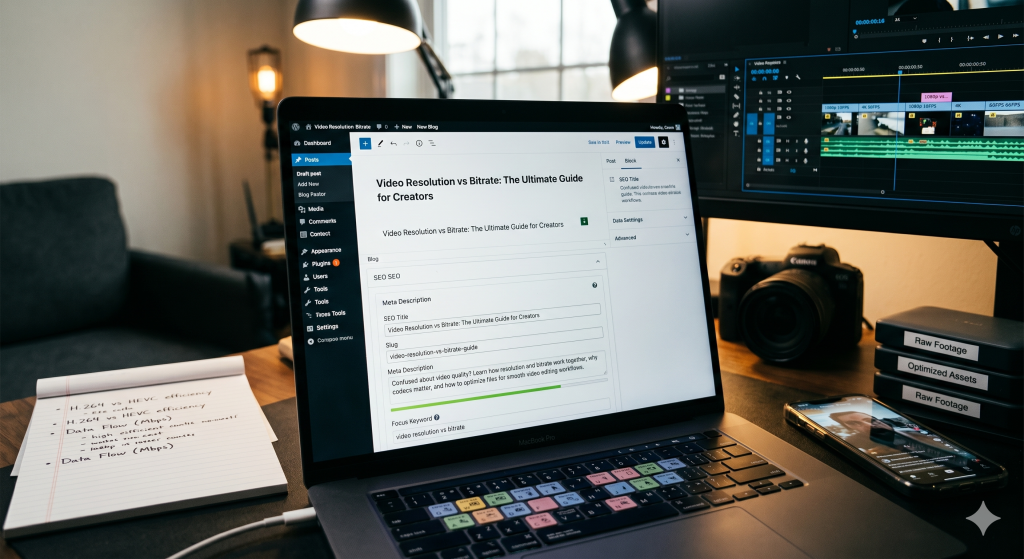
The Modern Creator’s Guide to Video Resolutions and Bitrates
When you watch a video online, it is easy to assume that higher numbers always equal a better picture. We see tags like 1080p, 4K, or 60FPS plastered across streaming platforms, and our instinct is to click the highest option available. However, for digital content creators, video editors, and regular tech users, there is a hidden side to video quality that numbers alone don’t show: the complex relationship between resolution and bitrate.
Understanding how these two factors work together is essential for anyone working in the digital space. Whether you are trying to pull clean sample clips for a video editing project, archiving raw footages, or looking to compress media so it doesn’t devour your phone’s storage space, mastering these concepts will drastically improve your production workflow.
What is Resolution? (The Digital Canvas)
Think of video resolution as the physical size of a digital canvas. It counts the total number of pixels packed inside the frame, measured horizontally and vertically. The more pixels available, the finer the detail the screen can display, assuming the screen itself supports that density.
-
720p (Standard HD): Containing $1280 \times 720$ pixels, this is the baseline standard for high definition. While it is considered too low for modern cinematic viewing, it remains incredibly popular for quick mobile content, fast-loading social media stories, and regions with slow internet access because it streams flawlessly without buffering.
-
1080p (Full HD): Clocking in at $1920 \times 1080$ pixels, this is the reigning champion of online video production. It hits the absolute sweet spot between crisp image clarity, processor rendering times, and manageable file sizes. Most online tutorials, streaming streams, and standard web videos are delivered in this format.
-
4K (Ultra HD): A massive canvas of $3840 \times 2160$ pixels. This format provides professional-grade sharpness and allows editors to crop or zoom into a shot during post-production without losing clarity. However, it requires serious hardware to process, vast amounts of local storage, and high-speed internet bandwidth to handle smoothly.
However, a massive canvas means nothing if you don’t have enough data to fill it out properly. That is where bitrate enters the equation.
What is Bitrate? (The Flow of Data)
If resolution is the size of the canvas, bitrate is the amount of video data processed every single second. It is usually measured in Megabits per second (Mbps) or Kilobits per second (kbps).
You can think of bitrate like a water pipe feeding an image display. If you open a massive 4K canvas but restrict the water pipe to a tiny bitrate, the video will look blurry, blocky, and full of digital distortions known as compression artifacts. On the flip side, a lower resolution frame like 1080p backed by a high, healthy bitrate will often look significantly sharper, smoother, and more professional to the human eye than a starved, low-bitrate 4K stream.
When a video contains a lot of fast movement—such as a sports game, an action sequence, or a camera panning across a dense forest—the bitrate needs to spike. If the bitrate is too low during fast-motion scenes, the encoder cannot keep up with how many pixels are changing at once, causing the video to break apart into ugly, pixelated squares.
The Role of Video Codecs: H.264 vs. HEVC
We cannot talk about bitrate without mentioning codecs. A codec (Compression/Decompression) is the mathematical formula used to shrink your massive video files into something that can actually travel over the internet.
-
H.264 (AVC): This is the most compatible video codec in human history. Almost every phone, web browser, television, and video tool can read H.264 files instantly. It balances file compatibility beautifully but requires a higher bitrate to keep images looking sharp.
-
H.265 (HEVC): This is the modern successor to H.264. It is highly efficient, allowing a video to maintain the exact same visual quality as H.264 while cutting the file size and required bitrate completely in half. It is the standard choice for 4K video streams, though older computers sometimes struggle to render it smoothly.
Why Media Compilers and Editors Care About File Weights
When editors download stock files, background tracks, or source footage to cut into their timelines, managing these technical details is a delicate balancing act. High-bitrate files preserve the pristine details of a shot, preventing delicate textures like sand, smoke, rain, or grass from dissolving into unreadable mush during fast camera movements.
However, high bitrates also cause file sizes to skyrocket. File size is calculated using a simple formula:
If you are compiling dozens of source clips on a local hard drive, an unoptimized workflow will fill up your system storage and slow your editing software to a crawl before your project is even half completed. Smart creators use online web utilities to target the specific format parameters they need—saving efficient, standard 1080p MP4 files for fast scratch editing and rough drafts, and reserving heavy 4K downloads only for final, polished background sequences.
Final Summary for Content Creators
To get the absolute best results out of your digital video projects, keep these golden rules in mind:
-
Match your resolution to your delivery platform. Don’t waste time rendering 4K files if your audience is watching on mobile phones.
-
Never compromise on bitrate. A high-bitrate 1080p video always beats a low-bitrate 4K video.
-
Keep an eye on your local storage. Clean out temporary project files and optimize your assets regularly.
“Need to grab quick, clean sample clips for your next video editing project? Use our free YouTube Tools Online to extract and process your video assets instantly without any annoying software installs.”
To make sure your files process perfectly after uploading, always check the official YouTube Recommended Encoder Settings for bitrates and frame rates.